
Docs
How to use ForgeOS.
Say what you want. That’s it. This page is short on purpose.
- In short
- Say the result you want. One sentence is enough.
- It works on a copy and runs your tests.
- Nothing changes until you accept.
Our measured results
Audited broad-build cohort, measured 2026-09-01: 641/932 verified end to end (68.8%; descriptive 95% interval 65.7%–71.7%), 143/932 false successes (15.3%; 13.2%–17.8%). 1005 total builds; 59 invalid-task rows and 14 unverifiable rows excluded. Repeated tasks are correlated. This is retained historical evidence, not qualification of current main. The production false-success limit remains 2%; the release gate is not satisfied. How these figures are measured (raw data, JSON).
Start in five steps
Nothing to connect. The included models do the first run.
- Sign up at signup. Your workspace opens ready.
- Connect GitHub, or use the starter project. Connecting is read-only.
- Ask in the chat. It writes a plan first.
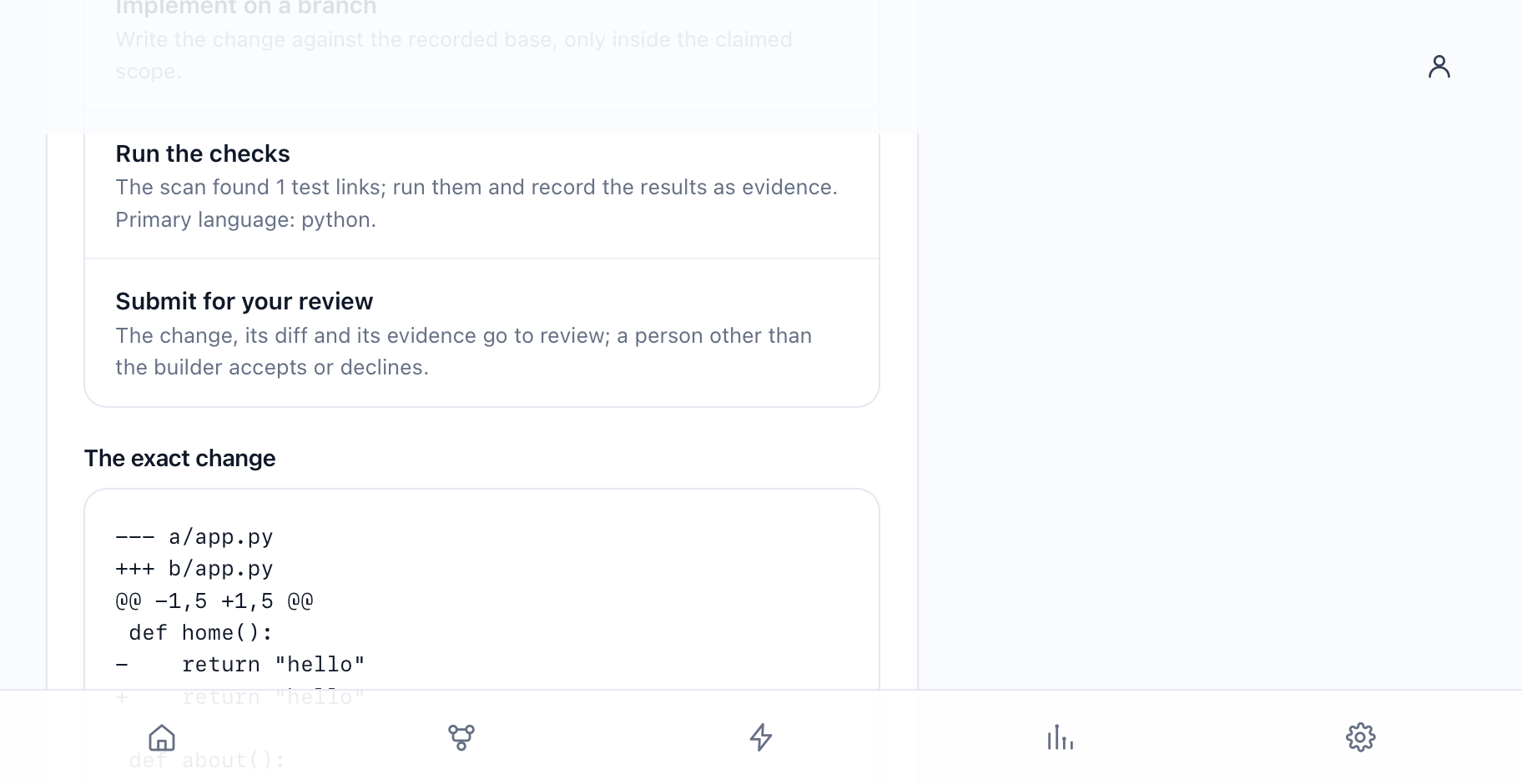
- It builds in a copy and runs your project’s own tests.
- Review and accept. Nothing is pushed to your branches.
What you never do
Paste API keys to get started, pick a model, or watch a terminal. Add your own provider only if it would materially improve or extend the work. Going over your limit is refused before anything is spent.
For developers
Every button calls the same /api/mc/* endpoints you can call. The reference for them, MISSION_CONTROL_API.md, ships in the source repository; this site does not serve it yet.
How to ask
Say the result, not the fix. “Make checkout load in a second on phones.”
Pick a repo
Only connected repos show. Connecting is read-only.
Narrow it, or not
Limit it to some paths if you like. It says what it will touch.
Planning changes nothing
No code changes until work starts.
Attach files
A brief, a sheet, a deck or a photo. If it can’t read one, it says so.
It remembers
It knows your last few asks, so “now match the about page” works.
Any language
Ask in any language and the reply comes back in the one you wrote. The interface itself is in English and eight other languages.
No clashes
Two goals that touch the same files take turns.
What the states mean
Show the table
| State | What it means | What moves it on |
|---|---|---|
Planned recorded as planned | Written down. Nothing changed. | The plan is set. |
Queued recorded as ready | Waiting to start. | A builder picks it up. |
Building recorded as leased | Being built now, on a branch. | It hands in the work, or stops and says why. |
Needs you recorded as blocked | Stopped. It needs a decision or something it lacks. | You. |
Waiting on your review recorded as in review | Built, and your project’s own checks passed. Waiting for you. | You accept, or send it back. |
Accepted recorded as completed | Accepted. Whether it is in your project yet is shown with the change. It does not mean reviewed, deployed or released. Accepted is not the same as done. | Nothing. It becomes Done when every check passes. |
| Done not a state of its own | Done means the thing you asked for exists, you can open it, and every check that kind of task needs has passed. Anything that was not checked is listed by name, and until it is checked the goal says accepted, not done. | Each check reads passed, failed or not checked. |
Stopped recorded as failed | It didn’t work, and it stopped instead of retrying quietly. | A new goal, or a retry. |
Cancelled recorded as cancelled | Stopped by you, or replaced. | Nothing. It is final. |
One chat per goal
Everything shows up in the thread, in order.
The plan
Before anything runs. Auto on: it starts itself. Auto off: you approve.
What it did
Each step, and what your tests said.
The change
The exact diff, and the page it makes.
Your review
Accept, decline, or say what to change.
Where it went
A share link, a web address if you publish, and a download.
Why it stopped
The reason, and the way out.
Undo
Undo an accepted change from the thread. The change is kept on a branch.
Decisions
It asks you for two things, in the conversation, on the goal.
Accept the work
Approve to finish. Decline to redo it. Neither one deploys.
It needs you
It stopped and says why. Stop the goal, or tell it what it needs.
Do nothing?
Then nothing happens. It never goes ahead after a timeout.
Add a teammate
Invite by email in Settings. They get a one-time link, good for a week.
Passwords
Forgot it? Reset by link. Changing it signs out other devices.
Proof
Read this before you trust a green mark.
Not run is not passed
A check that didn’t run shows “Not run”. It is never rendered as a pass.
Where checks come from
It runs your project’s own tests. It adds no security or accessibility checks of its own. Security, accessibility, browser journeys, interface latency, test-suite strength, runtime, deployment and rollback show up only when a runner on your instance makes them. The Evidence panel is the list.
A report is a claim
An agent’s own summary is labelled as its report, not as proof.
Check your instance. The status page shows what is connected.
What it can build
Every technology it can plan for, and whether this instance can run it (sign in to see). The counts are on the capability page.